
A full console does not have to mean deleting your favorite games. Here are five safe, manufacturer-approved ways to clear space and keep playing.
Quick hits
- The PS5’s Storage settings show exactly how much space games, media and saved data each take up.
- Deleted games stay in your purchase library, so they can be downloaded again at any time.
- PlayStation Plus members get 100 GB of cloud storage for PS5 saves and 100 GB for PS4 saves.
- PS5 games can be stored on a USB extended drive but must be copied back to internal or M.2 storage to play.
- An M.2 SSD needs an NVMe PCIe Gen4 x4 interface, at least a 5,500 MBps read speed and between 250 GB and 8 TB of capacity.
Console storage has a way of disappearing. A few large downloads, a season of captures and a stack of updates later, the machine refuses to install anything new. Before you start deleting things at random, it helps to know which of the safe, manufacturer-supported options actually fit your situation.
1. Check What’s Actually Eating Your Space
Guessing is the worst way to manage storage. From the PS5 home screen, open Settings, then Storage, and the console breaks down how much room your games and apps, media gallery and saved data each use. That single screen usually settles the question of where to start. If screenshots are the problem, clearing captures fixes it. If one massive game dominates, moving or trimming that game frees more space than deleting a dozen small ones.
It is also worth understanding what you are working with. PlayStation’s regular PS5 consoles ship with either 825 GB or 1 TB of storage, and the PS5 Pro comes with 2 TB. Those numbers sound generous until modern games, which can be large on their own, arrive with updates and add-ons attached. Part of the built-in space goes to system functions as well, so the usable total is smaller than the capacity on the box. Checking the Storage screen before touching anything takes less than a minute and prevents deleting the wrong thing.
PS4 owners have a similar entry point: Settings, then Application Saved Data Management, covers save files, while the Library and content launcher handle the games themselves.
2. Remove Games You Can Re-download Anytime
This is the method that frees the most space for the least effort, and the risk is lower than most people expect. PlayStation is clear on the point: removing a game does not cut off access to it, since anything you have bought can be downloaded again from your library at any time.
On a PS5, open Settings, then Storage, then Console Storage, then Games and Apps. Mark the items you want removed and confirm the deletion. On a PS4, find the game in your Library or the content launcher and remove it from there. Either way, your purchase record stays intact.
One PS5 feature makes this even more surgical. When a game shows the word Customize next to its title, you can manage portions of its data. If there are add-ons you never use, or parts of a game you have already finished, you can delete just that data and keep playing the rest. A finished single-player campaign with its add-ons removed can shrink dramatically while the multiplayer mode you still touch stays exactly as it was.
A sensible rule: keep installed whatever you are actively playing, and clear everything else. Re-downloading takes time, but it costs nothing, and it beats turning down a download because the drive is full. If you are weighing whether to solve this permanently with new hardware instead, the real cost of a new gaming console walks through the expenses that come after the purchase.
3. Clear Old Screenshots and Video Captures
Capture files are easy to forget because they accumulate quietly. Every clip and screenshot lands in the media gallery, and video in particular adds up fast. The PS5’s Storage screen lists media content separately, so you can see exactly how much the gallery costs you.
You have a few options before deleting anything:
- Send captures to your phone. Link your console to the PlayStation App on an iOS or Android device, and you can move your screenshots and game clips over without extra hardware.
- Copy to a plain USB drive. A commercially available USB drive formatted to FAT or exFAT can hold screenshots and video clips. Note the catch PlayStation mentions: media can be copied to the USB drive but not copied back from it, so treat that copy as an archive.
- Delete what you will never watch again. Most galleries hold far more filler than keeper material.
Once your favorites are safe on your phone or a drive, clearing the console copies is straightforward from the media gallery in Storage settings. Repeat this every month or two and captures stop becoming a storage crisis.
4. Move Saves to Cloud Storage Where Available
Saved data is small compared to games, but it is the one thing you cannot afford to lose, which makes it the last thing most people should delete. The better move is to move it off the console first.
PlayStation Plus members get cloud storage for saves: up to 100 GB for PS5 saved data and 100 GB for PS4 saved data, with PS4 saves limited to 1,000 files. Once your saves are in the cloud, you can download them onto another console and pick up where you left off. The PS5 can also handle this automatically. Enable auto-sync for PS5 games or auto-upload for PS4 games, and saved data syncs with the cloud when you close a game or put the console in rest mode. Since rest mode is when those uploads happen, how rest mode works on your game console explains what else the console does in that state. Note that cloud syncing requires automatic updates to be enabled.
No subscription? A PS4 can copy saved data to a USB storage device connected to the console, and you can copy those saves back onto another PS4 later. The console shows the date and time for each save version, which helps you pick the most recent one, and it warns you before overwriting an existing file. For older saves on either console that you genuinely do not need, deletion lives under Settings, then Saved Data settings on PS5 or Application Saved Data Management on PS4.
5. Expand With an Approved External or Internal Drive
If deleting is not appealing, both PlayStation consoles accept extra storage, and the two types behave differently.
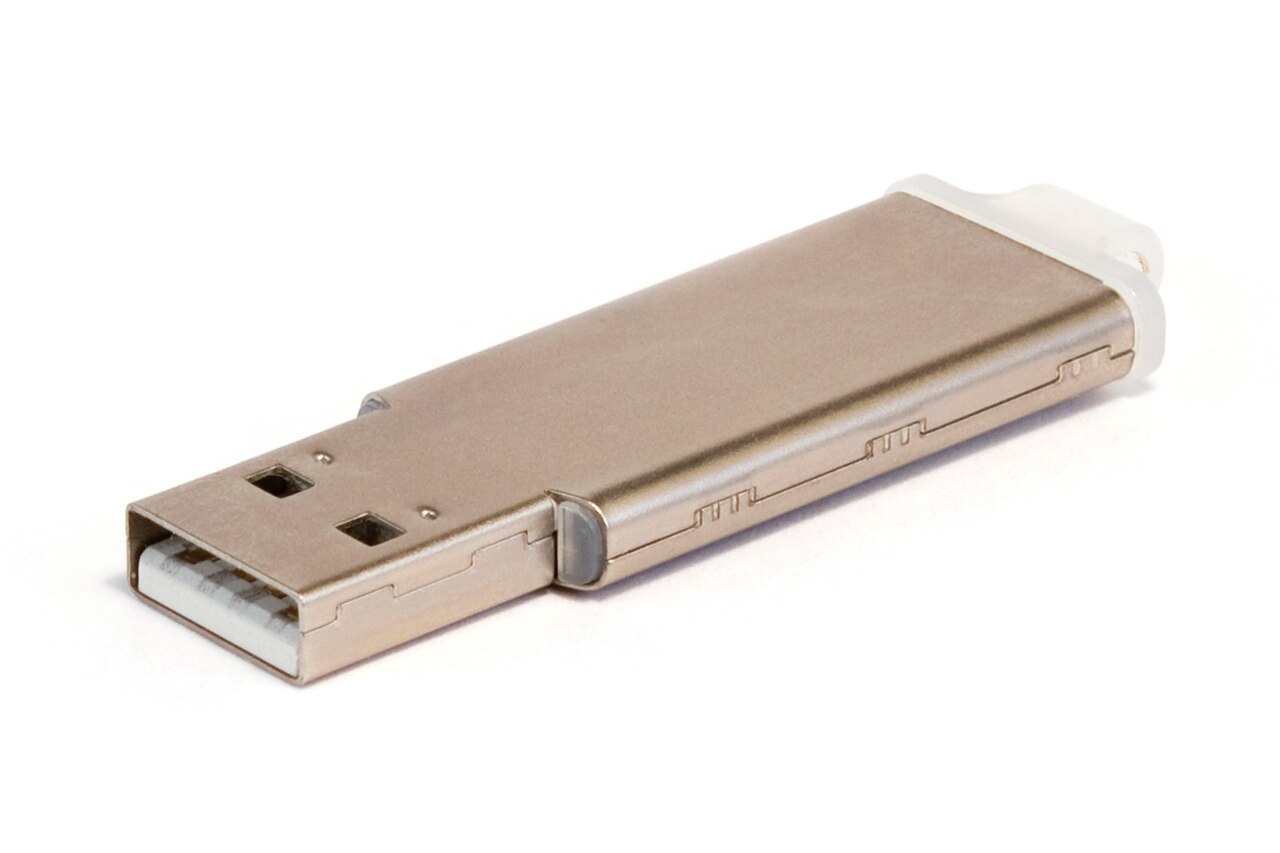
A USB drive formatted as USB extended storage works as overflow space. PS4 games can live there and be played directly from the drive, and you can set it as the installation location for new PS4 games. PS5 games can be stored there too, which is handy for games you have wrapped up or set aside, but they cannot be played from the drive. When you want one again, copy its data back to console storage or an M.2 SSD.
An internal M.2 SSD upgrade is the more capable option on PS5. PlayStation supports NVMe PCIe Gen4 x4 drives with a minimum of 250 GB and a maximum of 8 TB, in the 2230, 2242, 2260, 2280 or 22110 form factors, with a sequential read speed of at least 5,500 MBps. Once installed and formatted, an M.2 SSD lets you launch games directly, set it as the installation location for new games and update games on it, none of which a USB drive can do for PS5 titles.
Watch out
Formatting a USB drive as extended storage wipes everything on it, and PlayStation cautions that nothing erased during formatting can be recovered. Do not power down the console or unplug the drive mid-format, and always use the safe removal option before disconnecting, since pulling a drive out without it risks losing or corrupting data.
6. How to Know If an External Drive Will Work
Before spending money on a drive, check the requirements, because not every device is guaranteed to work. For USB extended storage on PS5, the console expects a SuperSpeed USB 10Gbps connection, and PlayStation lists two more limits that surprise people: the drive has to plug directly into the console rather than through a hub, and while you can attach multiple USB drives, only one can serve as USB extended storage at a time.
A few practical checks:
- Confirm the drive meets the console maker’s published requirements rather than relying on marketing labels on the package.
- Drives previously used as extended storage on a PS4 or another PS5 do not need reformatting, so an old drive may be reusable as is.
- A drive formatted for a different console or another system may not appear where you expect, and reformatting it wipes all data on it, so move anything important off first.
- For M.2 upgrades, match the interface, capacity range, form factor and read speed requirements listed in section five before buying.
Storage drives are a one-time cost rather than a monthly one, and the right choice depends on your console model and how many games you keep installed at once. When the requirements are confusing, the manufacturer’s support documentation is the authority, and it is the first place to check before plugging anything in or opening the console.
Between re-downloadable libraries, cloud saves, trimmed game data and approved expansion, a full console is a management problem, not a dead end. Start with the Storage screen, clear the easy wins first, and expand only if you still need the room.
Player questions
Will deleting a game erase my saved progress?
No. Deleting game data does not remove your saved data, and PlayStation notes that deleted games stay tied to your account, so purchases can be downloaded again from your library. If you also want to clear old saves, back them up to cloud or USB storage first.
Can I play PS5 games straight from a USB external drive?
No. PlayStation requires PS5 games on a USB extended drive to be copied back to console storage or an M.2 SSD before they will run. PS4 games, on the other hand, run straight from the drive.
How much cloud save storage does PlayStation Plus include?
A PlayStation Plus membership includes up to 100 GB of saved data space for PS5 games and 100 GB for PS4 games. The number of PS4 save files is limited to 1,000.
What happens if I format a USB drive as extended storage?
Formatting wipes everything already on the drive, and PlayStation cautions that nothing erased during formatting can be recovered. Move anything you want to keep off the drive before you format it.
Games, platforms and settings change with updates, so check the official help pages for your platform if something looks different.